
StyleSVG

JPG to SVG

Turn any JPG to SVG in seconds. Upload a JPEG logo, photo or scanned drawing, and our AI traces it into crisp vector shapes with the background removed if you want. Check the preview first; there is no sign-up until you download.

Made for

The traced result as it is. You can adjust everything afterwards.

Drop your image here

PNG, JPG, WEBP or GIF · up to 25 MB · one free preview a day, no signup

Signed in? Pick up to 20 images at once.

Choose image
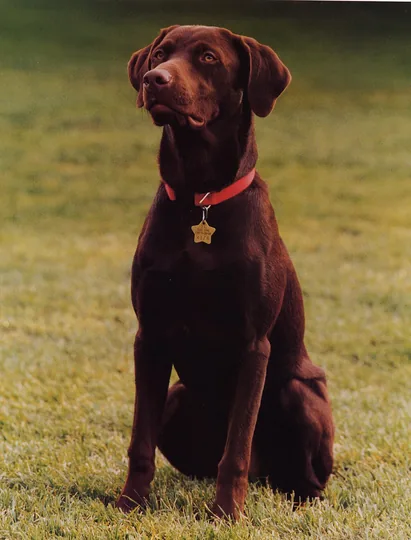
Chocolate Labrador sitting on a lawn, an ordinary JPEG photo
Before: a JPEG photo with grass behind the dog.
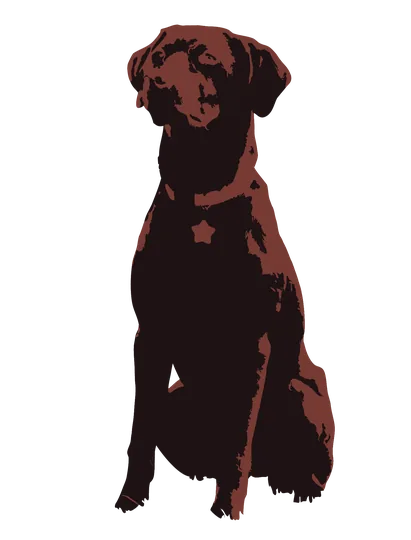
The Labrador cut out from the lawn and redrawn as two-tone vector shapes | JPG to SVG
After: AI background removal plus the laser preset leaves a two-tone silhouette.

What Happens When a JPEG Becomes a Vector?

A JPEG stores a photo as millions of coloured dots and throws away fine detail to keep the file small. Converting it to SVG replaces those dots with outlines that a cutter, laser or printer can follow at any size.

JPEG to SVG is the same job

JPG and JPEG are two spellings of one format, so a .jpeg file goes through exactly the same steps as a .jpg. We read the file header rather than trusting the extension, which means renamed or oddly named photos from phones, cameras and messaging apps are recognised correctly.

Why JPEG compression matters

Every time a JPEG is saved, the format smooths edges into blocky squares and faint halos. A naive tracer turns that noise into thousands of tiny specks. Before tracing, small JPEGs get a gentle noise filter and an upscale, so the outlines follow the real shape rather than the compression artefacts.

JPG to vector, not just to SVG

Once the photo is a vector, the same paths can be saved in other vector formats too. Besides the .svg file you can download a vector PDF or an EPS for print shops, plus a transparent 2048 px PNG for quick previews and social posts. All four files come from one edited result, so a colour you change once is changed everywhere, and you never have to redo the trace for a different format.

Vectorize an image →

Why Use Our JPG to SVG Converter?

JPEGs are the hardest everyday images to vectorise: they have no transparency, often sit on a busy background and are usually compressed. These features were built for exactly that.

Background removal that understands JPEG

A JPEG cannot be transparent, so almost every one arrives with a white or coloured backdrop. Remove background deletes that colour from the vector result and keeps same-coloured details inside the artwork. For photos taken outdoors or on a cluttered table, AI background removal cuts the subject out before tracing.

A JPEG to SVG converter with colour control

Keep every colour the trace finds, or reduce the palette to as few as two. You can also click a swatch and pick a new shade, so a faded scan becomes a bold brand colour. Each edit updates the preview within a couple of seconds.

SVG converter →

Rescues small and blurry pictures

Images saved from a website or a chat app are often under 500 pixels wide. The converter enlarges them to at least 1,024 pixels on the short side before tracing and warns you when the source is too small for thin lines or tiny text to survive.

How to Convert JPG to SVG in 3 Steps

The whole conversion runs on our servers, so an old laptop or a phone works just as well as a design workstation.

1

Choose your JPEG

Click Choose image or drop the photo onto the upload area at the top. Pick a use first if you know it: Cricut, laser engraving, print or embroidery software. Switch on AI background removal for photos with a messy backdrop.

2

Fine-tune the traced result

When the preview appears, slide between the original photo and the vector version to compare them. Remove the white background, cut the number of colours or swap shades. Mistakes are easy to reverse with Undo.

3

Unlock and save the files

Sign in with Google to download your first file for free. Further files are $6.99 each or included in Starter and Pro plans. Download the SVG, or the PNG, PDF and EPS versions of the same edited artwork.

See pricing →

Tips for Cleaner Results from JPEG Files

A few habits make a noticeable difference to how clean the finished vector looks, and none of them take more than a minute. Most problems we see come from tiny source files and from asking for too many colours.

Use the original, not a screenshot

Screenshots add window edges and shrink the picture. Ask for the original file, or export the largest size your phone offers. If you only have a PNG, our main converter handles it just as well.

PNG to SVG converter →

Cricut cut files from a JPEG: fewer colours win

Each colour becomes one layer of vinyl or cardstock. Four to eight colours keep cutting time reasonable, and the Cricut preset already sets eight with one layer per colour.

Photos look best as posters

A photograph turns into flat areas of colour, similar to a screen print. Two or three tones suit engraving and stencils; six to eight give a pop-art look. For print shops that ask for EPS, the PNG to EPS page explains the formats.

PNG to EPS converter →

JPG to SVG FAQ

Have a JPEG ready? Turn it into a vector now.

Upload a JPG