
StyleSVG

Resize SVG

Resize SVG files to an exact size in seconds, right in your browser. Type a new width or height in millimetres, centimetres, inches or pixels, keep the proportions locked or stretch freely, and download a file that imports at the right size every time. Because only the size changes, the artwork stays perfectly sharp. Nothing is uploaded.

Drop an SVG file to resize it

SVG up to 10 MB · converted in your browser, never uploaded

Choose SVG

Your SVG is converted on this device and never uploaded. External fonts and images in the file are not loaded.

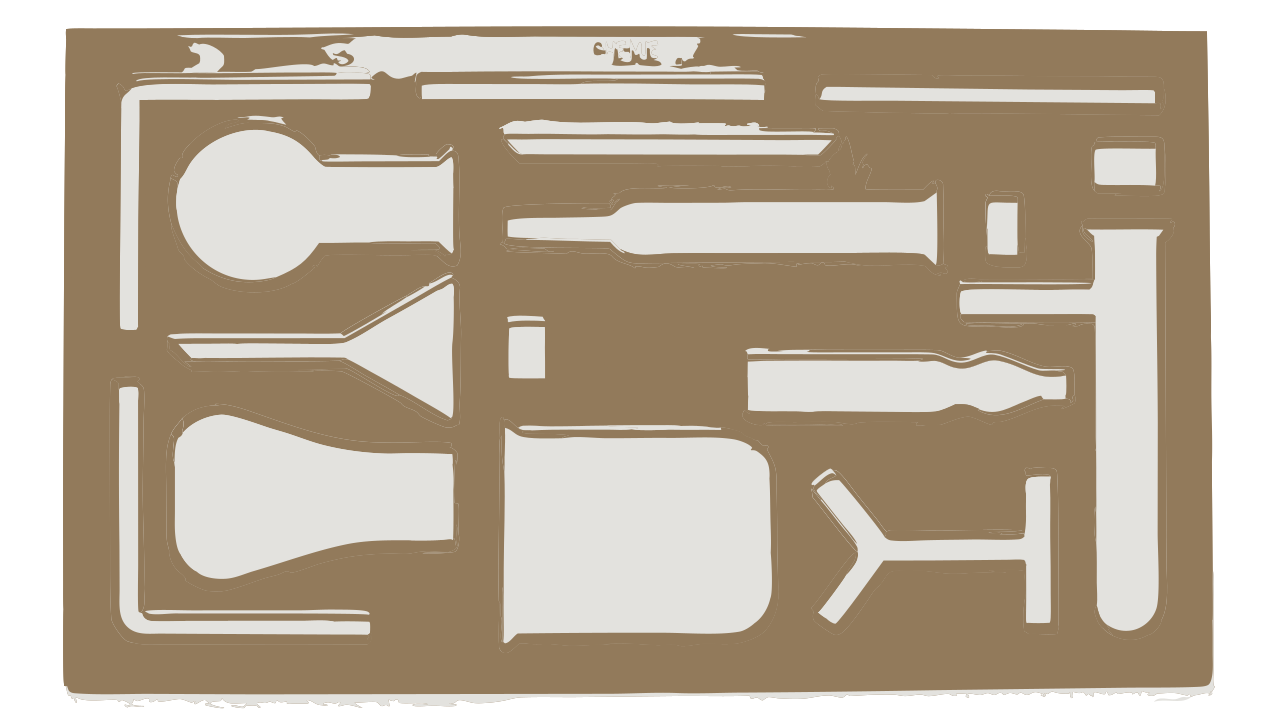
Laboratory glassware stencil SVG at 338.7 mm wide
Before: 338.7 × 190.8 mm, too wide for a 300 mm laser bed.
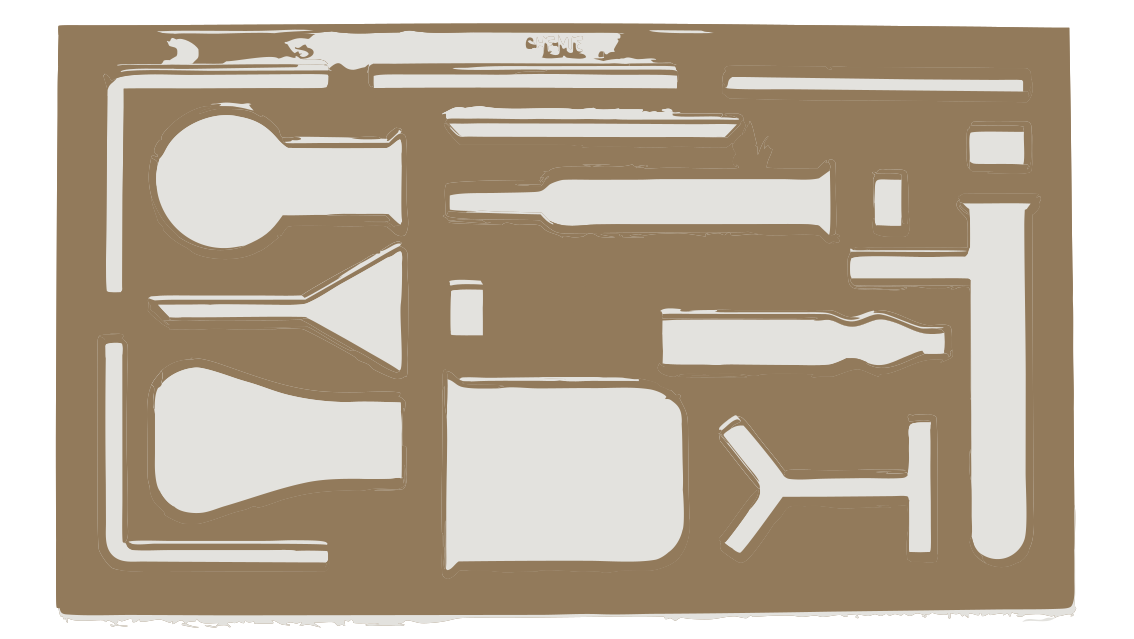
The same stencil resized to 300 mm wide with proportions kept | resize SVG
After: 300 × 169 mm, same shapes, sharp at any zoom.

Why Resize an SVG File?

An SVG can be drawn at any size, but the file still carries a default width and height. That default decides how big the design appears when you import, print or place it.

Import at the right size

Cutting software, laser programs and print layouts read the width and height stored in the file. When those are in pixels, each program guesses the pixel density differently, so the same design can come in at different sizes. Setting the size in millimetres or inches removes the guesswork.

Fit a product or a machine

Shirt transfers, tumbler wraps, stickers and laser-cut parts all have a fixed space to fill. Setting the exact width before you import saves resizing by eye in every project and keeps sets of designs consistent with each other. When you resize SVG designs to the exact space first, the cut lines up with the blank on the first try.

Prepare icons for websites

Icons often arrive at awkward sizes such as 512 pixels. Give them a sensible default like 24 or 32 pixels, or remove the fixed size altogether so the icon scales with its container and CSS decides how large it looks. You can resize SVG icons in bulk the same way, one file at a time, with the same settings kept between files.

Why Use This Tool to Resize SVG Files?

Most image resizers turn your SVG into pixels. This one changes only the size attributes, so the vector stays a vector.

Lossless by design

Only the root width, height and viewBox are edited; every path and colour stays exactly as it was. The design is as sharp at 2 metres as at 2 centimetres, and the file size barely changes.

Real units and proportion lock

Work in px, mm, cm or in, and the original size is shown in all of them. Lock proportions so changing the width updates the height, unlock to stretch, or use quick ×0.5 and ×2 buttons. Those same controls let you resize SVG parts for a laser to a tenth of a millimetre.

Resize, then convert

Need a PNG or PDF at the new size? The converter below the editor uses the new dimensions straight away. Everything runs in your browser, with no account, watermark or limit.

How to Resize an SVG in 3 Steps

Most people resize SVG files in under a minute, and you can change the numbers as often as you like before downloading.

1

Open the SVG

Drop an .svg file of up to 10 MB onto the box above, click Choose SVG, or paste the SVG code and click Load code. The original size appears in pixels, millimetres and inches.

2

Enter the new size

Choose a unit, then type the width or the height; with the chain link on, the other value follows. Unlink to stretch, or tick Responsive to remove the fixed size for web use.

3

Download or convert

Click Download resized SVG to save the file, Copy code to paste it into HTML, or pick PNG, JPG, PDF or DXF in the converter below.

Tips for Sizing SVG Files

A few habits that make sizes predictable from screen to cutter. They matter most when you resize SVG artwork for cutting machines and printers.

Use physical units for cutting and print

Millimetres or inches make the size unambiguous. Pixel sizes are read at 96 pixels per inch by browsers and Inkscape, but some craft programs assume 72, which makes the same file import about a third larger.

Stroke widths scale too

Lines get thicker or thinner in proportion when you resize. If a very thin outline must stay cuttable after shrinking a design, thicken it in your design app first, or check it after resizing.

Check the result in the viewer

Open the resized file in our SVG viewer to confirm the new width, height and viewBox, zoom into fine details, and compare it with the original before sending it to a machine.

SVG viewer →

Resize SVG FAQ

Ready to set the perfect size?

Resize SVG