

StyleSVG

SVG Viewer

A free SVG viewer that runs in your browser. Drop in a file or paste SVG code to see the artwork, zoom in on any detail, switch to a dark background, and read its size, colours and source code. When you are done, convert it to PNG, JPG, WebP, ICO or PDF on the same page. Nothing is uploaded.

Drop an SVG file to view it

SVG up to 10 MB · converted in your browser, never uploaded

Choose SVG

Your SVG is converted on this device and never uploaded. External fonts and images in the file are not loaded.

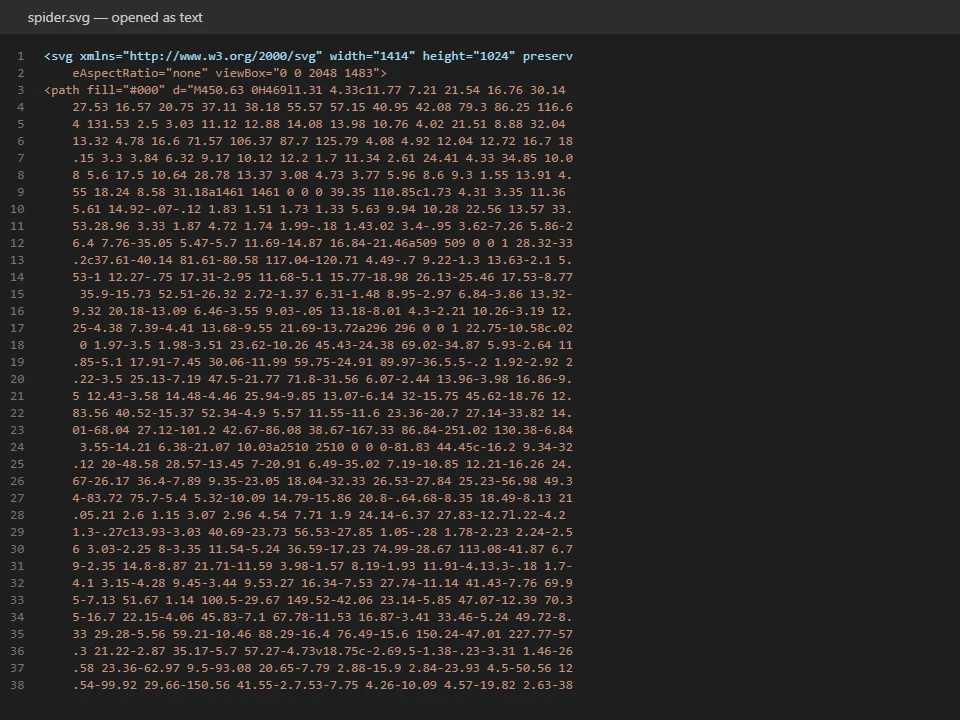
The code of an SVG file opened as plain text
Before: opened as text, an SVG file is just lines of code.
The same file shown as a spider illustration | SVG viewer
After: the viewer draws the artwork and lists its size and colours.

Why Use an SVG Viewer?

SVG files are text documents that describe shapes, so what you see depends on the program that opens them. A dedicated viewer shows the picture and the facts behind it in one place.

Check a file before you use it

Bought a cut file, downloaded an icon pack or received a logo from a client? Open it here to make sure it is the right design, at the right proportions, with no stray shapes or missing parts, before you load it into Cricut, a laser or a website.

Open SVGs on any computer or phone

Windows often opens SVG files in a browser tab or not at all, File Explorer shows no thumbnails, and phones rarely know what to do with them. This online SVG viewer works the same everywhere, with nothing to install.

See what is inside the code

The info panel reads the width, height and viewBox, counts paths and groups, lists every colour and flags gradients, masks, filters, text, embedded images and animation. It is a quick way to judge whether a file will cut, print or scale cleanly.

Why Use This SVG Viewer?

Most online tools upload your file to show it back to you. This one does everything locally and adds the checks makers and developers actually need.

Safe by default

SVG files can contain scripts and links. Before anything is shown, this SVG viewer strips scripts, event handlers and external references, then displays the cleaned file as a plain image and tells you how much it removed. The original code stays visible in the code panel as text.

Zoom, backgrounds and code side by side

Zoom from 10% to 1,600% and the vector is redrawn at every step, so edges stay sharp. Switch between checkerboard, white and black backgrounds to spot white or transparent shapes, and copy the full source code with one click.

Convert without opening another tool

Under the preview, the same file can be saved as PNG, JPG, WebP, ICO or PDF with size, background and page options. You do not need to choose the file again or visit another site.

How to View an SVG File in 3 Steps

The SVG viewer opens a file in a second or two, and the file never leaves your device.

1

Open or paste the SVG

Drop an .svg file of up to 10 MB onto the box above, click Choose SVG, or paste SVG code into the text box and click View code as image.

2

Look around

Use the plus and minus buttons to zoom, Fit to return to the whole picture, and the round swatches to change the background. Scroll the preview to move around a zoomed-in drawing.

3

Check the details, then convert

Read the size, element count, colours and features in File details, copy the code if you need it, and pick a format under Convert or download to save an image or PDF.

Tips for Inspecting SVG Files

A few things to look for when you check a design file before using it.

Use the black background for white shapes

White text and outlines disappear on a white page. Switch to the black background to see every shape, and to the checkerboard to tell white fills from transparent areas.

Watch the colour list for cutting

Each colour usually becomes a separate layer in Cricut Design Space or a separate operation in laser software. If the list shows near-duplicate shades, merge them in your design app first to save time on the machine.

Need a picture for a listing?

Marketplaces and social networks want PNG or JPG previews. Convert the SVG right below the viewer, or open the dedicated SVG to PNG tool for transparent, high-resolution exports.

SVG to PNG →

SVG Viewer FAQ

Have an SVG to check?

Open the SVG viewer