
StyleSVG

PDF to SVG

Convert PDF to SVG in seconds, right in your browser. Every shape, colour, gradient and line is rebuilt as clean vector paths at the exact page size, and text becomes crisp outlines that cutting machines can follow. Pick any page or download them all as a ZIP. Your PDF is never uploaded.

Drop a PDF here to convert it to SVG

PDF · up to 25 MB · every page can be converted

Choose PDF

Converted in your browser. The PDF is never uploaded.

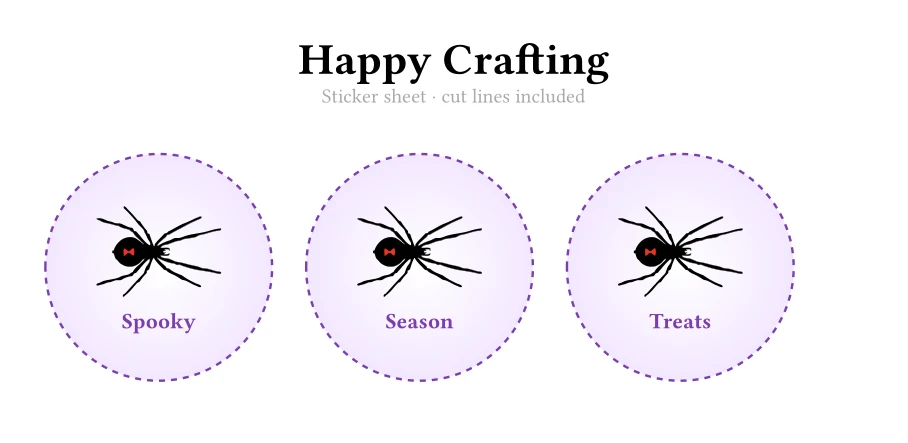
Sticker sheet PDF page with round labels, a spider illustration and text
Before: the PDF page, 160 × 78 mm, with text, dashed circles, a gradient and three spider drawings.
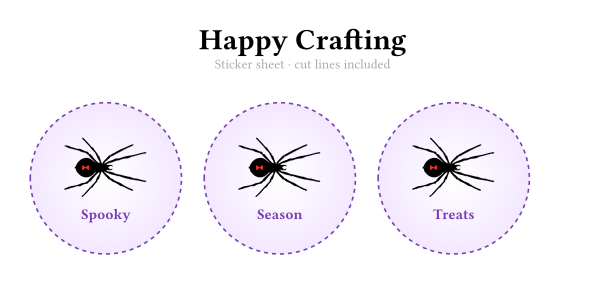
The same sticker sheet as an SVG with shapes and outlined text | PDF to SVG
After: a 118 KB SVG at the same 160 × 78 mm, every shape still a vector and the text as outlines.

Why Convert a PDF to SVG?

PDF is the format designs are shared in, but many tools only accept SVG. Converting gives you the same vector artwork in a format that cutters, editors and websites can use directly.

Cut designs on a Cricut or laser

Printable patterns, sticker sheets and alphabet templates are often sold as PDF, while Cricut Design Space, Silhouette Studio and most laser software expect SVG. Converting keeps every outline sharp, so the machine cuts exactly what you see on screen.

Reuse logos and illustrations

Brand guides, reports and print proofs usually hold the original vector logo. Converting the page gives you an SVG you can open in any editor, recolour, resize or place on a website without tracing anything again.

Keep the exact size for print and production

The SVG is written in points, the same unit as the PDF page, so a 100 mm label stays 100 mm when you import it. That matters for stencils, signs, labels and anything that has to fit a real object.

Why Use This PDF to SVG Converter?

Most online converters upload your file and send back whatever their server produces. This tool reads the drawing instructions inside the PDF and rebuilds them as SVG on your own device.

Faithful vector output

Fills, strokes, dashed lines, clipping, transparency, linear and radial gradients, repeating patterns and embedded images are all carried over. In our tests the converted pages matched the PDF to within one percent of pixels, so the result looks like the original.

Every page, one at a time or all at once

Thumbnails let you jump to any page of a long document. Download the page you need, copy its code, or save every page as separate SVG files in one ZIP. Password-protected PDFs open after you type the password, which never leaves the page.

Honest about scans

If a page is really a scanned photo, an SVG would only wrap that picture. The converter tells you so and offers our AI vectorizer, which redraws the image as true vector shapes. Nothing is uploaded unless you choose that option and confirm it.

How to Convert PDF to SVG in 3 Steps

A typical conversion takes a second or two per page, and you can switch pages as often as you like.

1

Open the PDF

Drop a PDF of up to 25 MB onto the box above or click Choose PDF. If it has a password you will be asked for it. The first page is converted straight away.

2

Pick a page and check it

Use the thumbnails to choose a page. The preview shows the SVG with its size in millimetres and inches and how many shapes, letters and images it contains. Tick the white background option if you need one.

3

Download the SVG

Click Download SVG for the current page, Copy code to paste it into HTML, or Download all pages to get a ZIP with one SVG per page.

Tips for Better Conversions

A few habits that make converted files easier to cut, edit and use.

Start from a vector PDF

PDFs exported from design apps, Word, Canva or online pattern shops contain real vector shapes and convert perfectly. A PDF made by scanning paper or photographing a page contains only a picture; use the AI vectorizer for those.

Text arrives as outlines

Letters are converted to shapes, so they look identical everywhere and can be cut, but you can no longer retype them. If you need to change the wording, edit the PDF first or set the text again in your design app.

Need DXF for CAD or laser?

Some laser and CNC software prefers DXF. Convert the page to SVG here, then open the SVG in our SVG to DXF converter to get polylines in millimetres or inches.

SVG to DXF →

PDF to SVG FAQ

Ready to convert your PDF?

Convert a PDF